
 Rafael

Your device
Android phone or tablet
For the parent's phone, the child's and an older adult's. The filter works on Wi-Fi and on mobile data.
Rafael goes on your phone and on your child's devices. Each device gets it from its own store.
The app isn't in the stores yet. We'll let you know the day it's out.

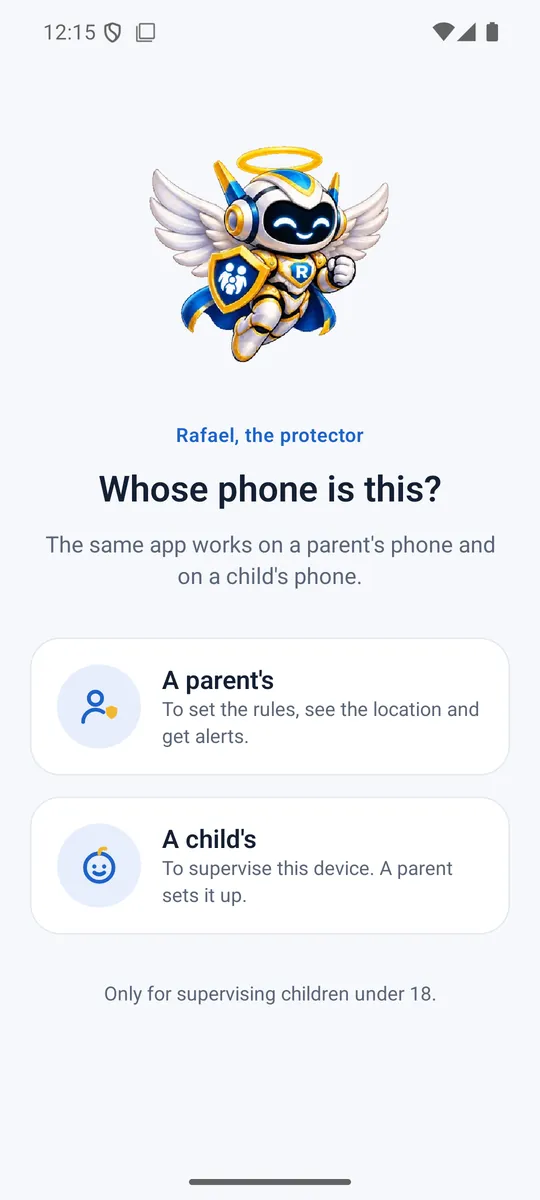
The same app works on the parent's phone and on the child's device. The first time you open it, you choose whose it is.
For the parent's phone, the child's and an older adult's. The filter works on Wi-Fi and on mobile data.

The same app from Google Play, installed on the TV. On a TV, location and the emergency button aren't used.
For the parent's phone and for the child's iPhone or iPad. The filter shows up in Settings as “Supervised by your family”.
The same app, from the TV's Amazon store. As on other TVs, location and the emergency button aren't used.

The Rafael program for Windows 10 and 11 handles screen time, schedules and blocked programs. It shows “Supervised by your family” in the system tray.
There's no app. It's protected by the Rafael filter profile, installed from Safari with the link the app gives you on your phone.

These devices have no app. They're protected by the filter on your home router.
First, install Rafael on your phone. Then connect each device with a code.
On your phoneOpen Rafael, choose “A parent's” and tap “Add device”. You'll see a code.
On your child's deviceInstall the same Rafael app and choose “A child's”.
On that same deviceEnter the code. The device is now connected to your family.
Windows works the same way: install the Rafael program and enter the code. The code is valid for 24 hours.
There's no app for Mac. Rafael protects it with a filter profile installed from Safari.
On your phone, open Rafael, tap “Add device” and choose “Mac”. The app shows a link.
On the Mac, open that link in Safari.
Open System Settings and search for “Profiles”. Select the downloaded profile and install it.
Apple TV, game consoles and smart TVs are protected by the filter on your router. The router passes it on to every device on your home Wi-Fi.

In Rafael, tap “Add device” and choose “Home network (router)”.
With your phone on your home Wi-Fi, tap “Link this network”.
Open your router's page in a browser. It's usually 192.168.1.1 or 192.168.0.1; the address and password are on the router's label.
In the LAN or DHCP section, enter the filter address as both the primary and the secondary DNS. You'll find the address in the app's router guide.
Save your changes and restart the router.
Rafael isn't in the stores yet. Write to us and we'll let you know the day it's out.
